 ORION
ORIONEvery game you own,
one library.
A launcher for a jailbroken PS5: your PS5 and PS4 games, homebrew, media apps and emulated games side by side, with box art, favourites, tabs of your own and a galaxy glass look. Everything is driven with the controller, and everything can be changed in Settings.
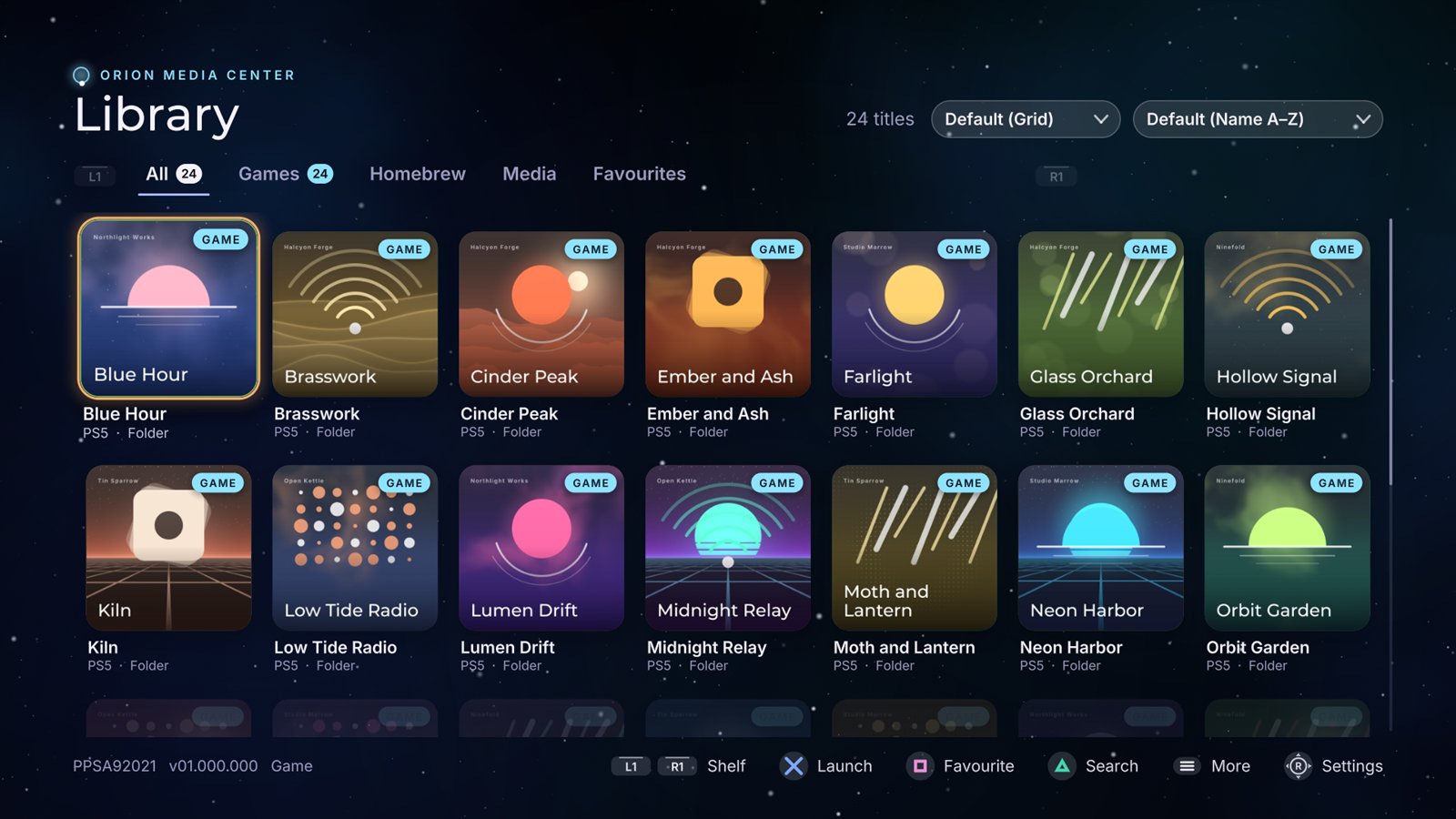
One library for everything
ORION finds what is on the console by itself and starts each title the way it should be started, emulated games straight in the emulator that plays them.
Games, homebrew and media
PS5 and PS4 games, homebrew and media apps, found where ShadowMountPlus mounts them:
/data/homebrew, /mnt/ext0/homebrew and USB drives.
Start a game from its cover
Emulated games open directly in the emulator that plays them, no menus in between. When two emulators can play a game, ORION asks once and remembers.
Covers as you scroll
Box art downloads as the covers scroll into view, or comes from what PS5SX2, Porpoise and PS5-ECAM have already downloaded.
Arranged your way
All, Games, Homebrew, Media, Favourites, one Emulators tab with a row per system (or a tab per system), and tabs of your own. Each keeps its own view, sort and theme.
A look of your own
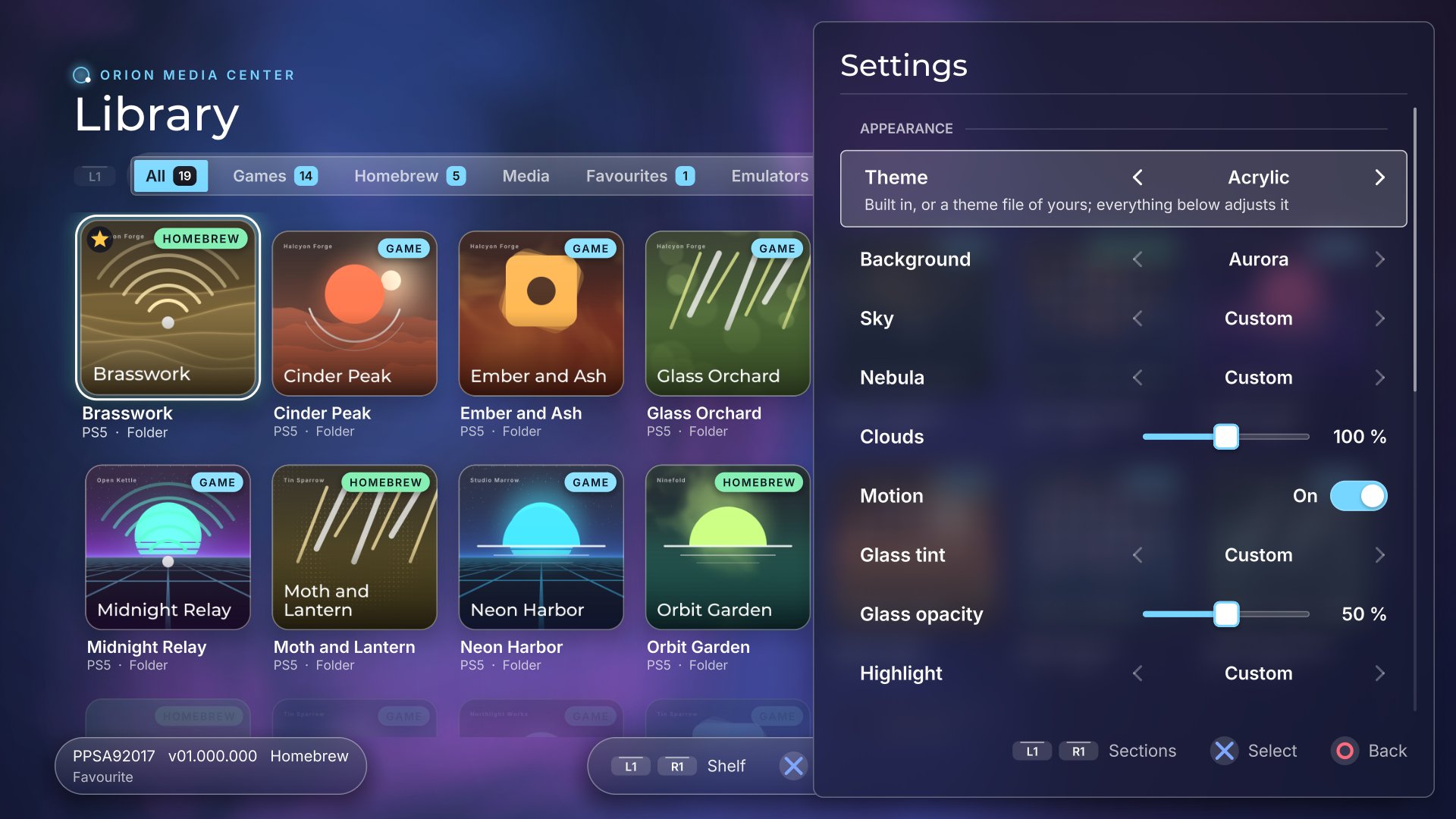
31 built-in themes, a theme per tab, and theme files you write in a few lines of text. Settings shows every change live beside the library. The theming guide.
Made for the controller
Every setting in one place (R3), a first-run setup, background music and sound effects, autoboot after the jailbreak, a return to ORION when a game closes, and updates that install themselves.
Every kind of title in one tab
PS5 games, homebrew, and DS and GBA games in Favourites, each started with Cross: the emulated ones straight in their emulator.
Play time for every game and when you last played it, Continue playing over the All tab, favourites, hidden titles, search, and removing a title from the home screen (or deleting it) without leaving ORION.
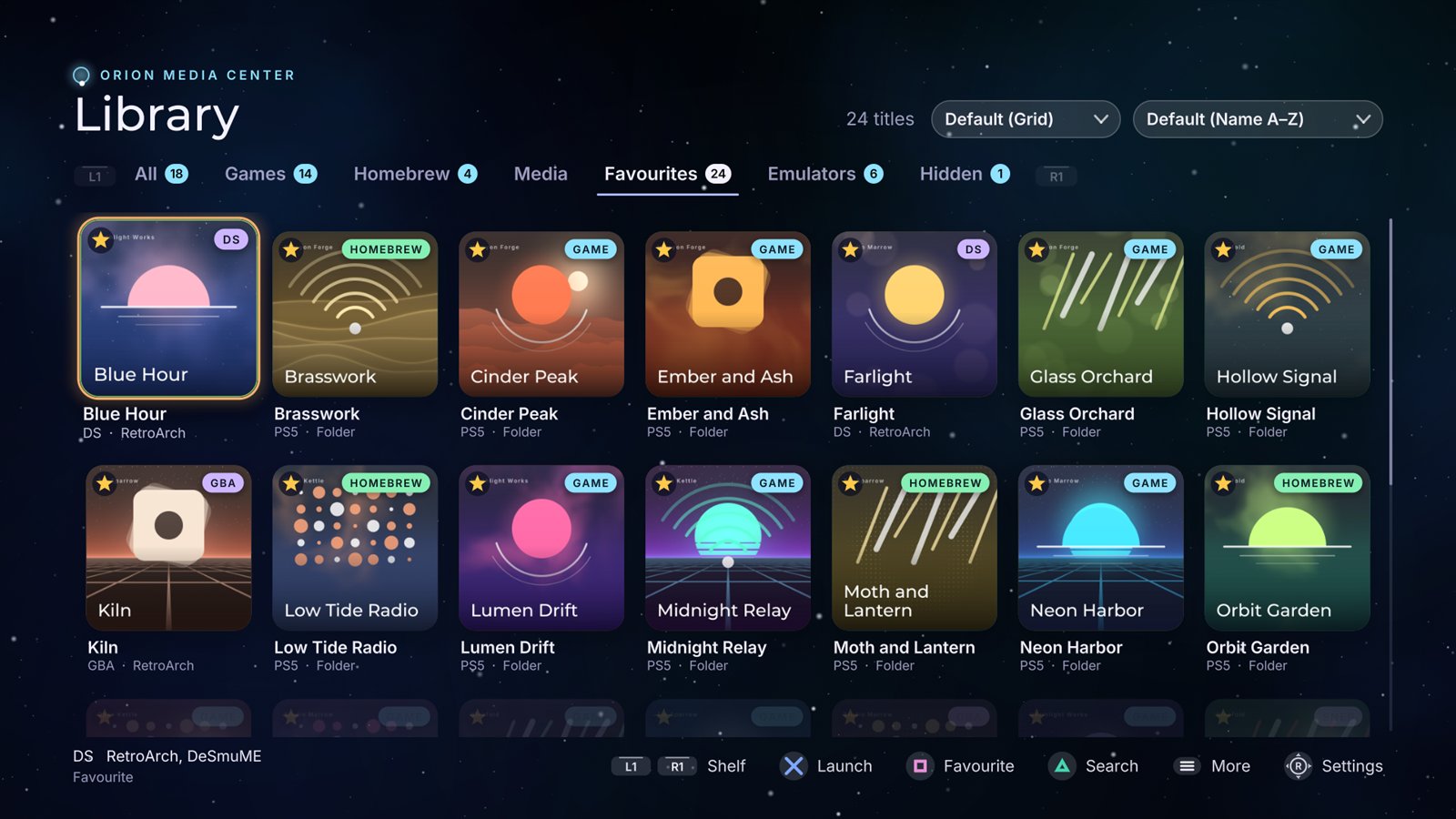
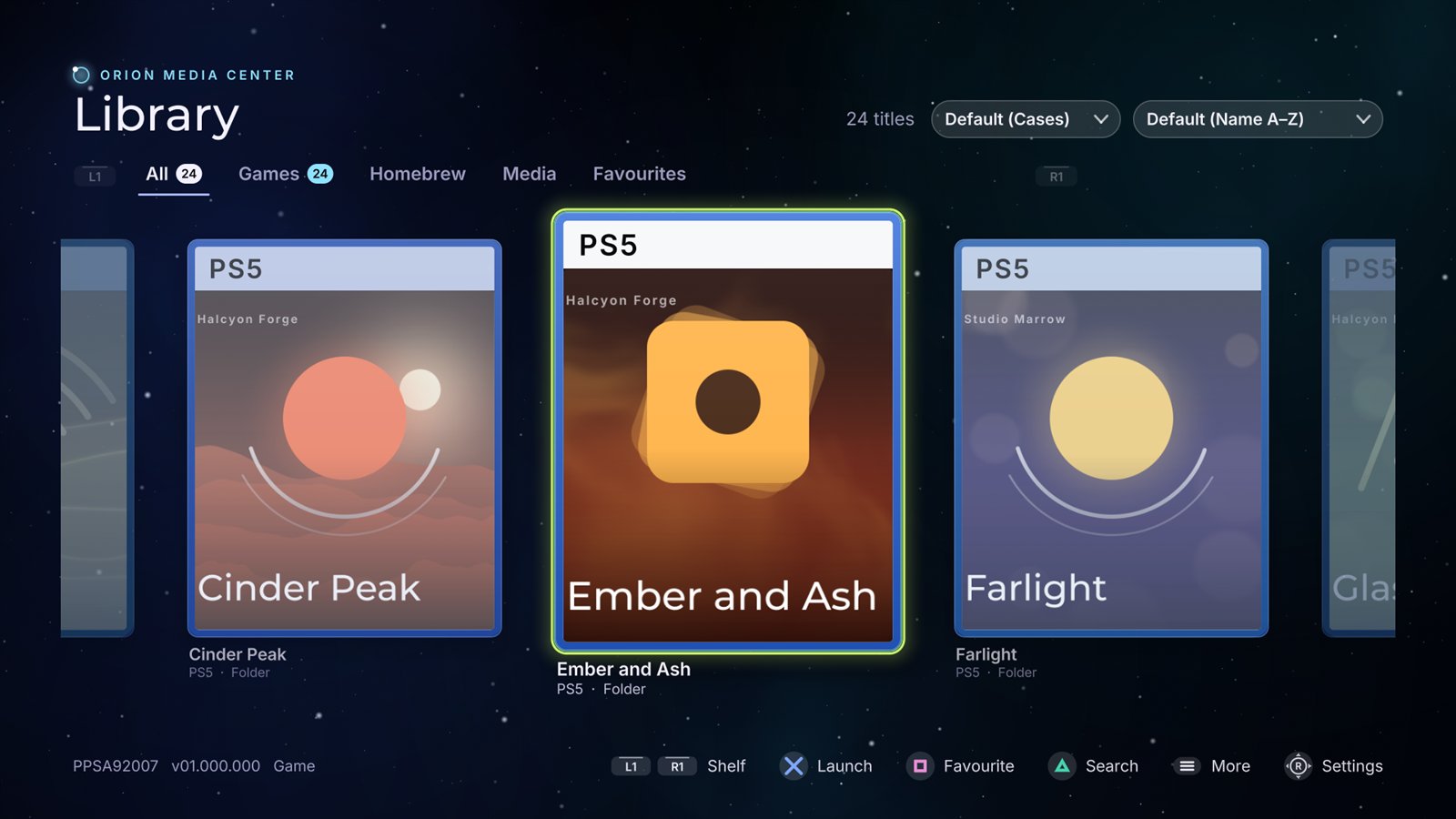
Look at it three ways
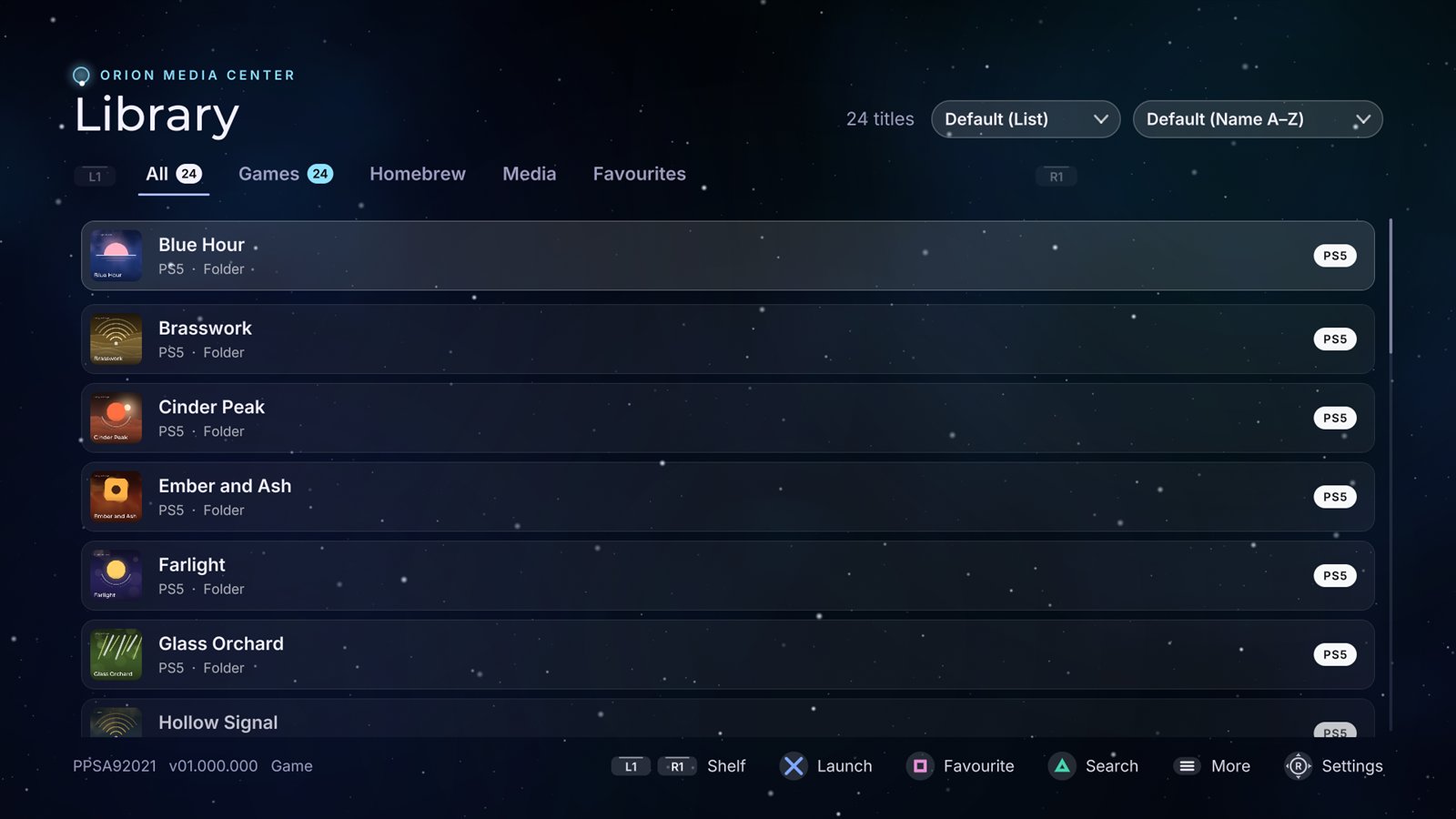
Each tab keeps its own view and its own order: by name, recently added, platform, tag (Games, Homebrew, Media, under separators), recently played or most played.
The emulators ORION works with
Settings, Emulators, Scan for emulators finds them and the games they can see. Games start straight in the emulator, which closes back to ORION when you are done.
| Emulator | Systems | Where ORION finds the games |
|---|---|---|
| RetroArch | Every system its cores play: NES, SNES, N64, Game Boy and Color, GBA, DS, PS1, PSP, Genesis, Saturn, Dreamcast, arcade and more | Its own content/<system>/ folders and every game in its
playlists, wherever the files are |
| Porpoise | GameCube, Wii | Its porpoise/games folder, /data/porpoise/games,
/data/games, /data/roms, /data/iso |
| PS5SX2 | PS2 | .iso, .chd, .cso, .zso in
/data/PCSX2/games, /data/PCSX2, and PS2/
or PCSX2/games/ on a drive |
| PS5-ECAM | Wii U, 3DS, DS, Switch | Every game in its own library, and the games folders set in its Settings
(Wii U as .wua, .wud, .wux,
.rpx or NUS files; 3DS, DS and Switch by their usual files) |
| Your folders | Any of the above | Settings, Emulators, an emulator, Add a game folder |
ORION does not come with games, emulators or system files. It lists and starts what you have installed yourself.
See every change as you make it
Pick one of 31 themes, tune the sky, the glass, the colours and the corners, or give each tab a theme of its own. While you are in Appearance, Settings steps aside and the library shows each change live.
Themes are plain text files you can write, share and
drop into /data/orion/themes/.
Get it on your console
You need a PS5 you own, jailbroken, with a homebrew loader for folder apps, ShadowMountPlus loaded after each jailbreak, an ELF loader on port 9021 and an FTP server on the console.
- Download the
latest release ZIP
and extract it. It holds one folder,
PPSA99061. - Upload that folder whole to
/data/homebrew/with a plain FTP client in binary mode, so you have/data/homebrew/PPSA99061/eboot.bin. Some upload tools leave out files they do not expect in an app; copy every file. - Wait about ten seconds. ShadowMountPlus registers the title and ORION appears on the home screen. If it does not, run ShadowMountPlus again.
- Open ORION. A short setup walks you through the look, your emulators, box art, how the library is sorted and autoboot.
It updates itself
Each time it opens, ORION asks GitHub for the latest release, downloads a newer one in the background, checks it against its published SHA256 sum and asks before installing. Your settings, favourites and box art stay.
Opens after the jailbreak
Off until you want it: turn on Autoboot ORION after the jailbreak in
Settings, add the bundled orion-autostart.elf last to your autoloader's
list (for example Payload Manager's Autoload), and ORION opens once nothing else is in
front.
When something goes wrong
Every launch, update and scan is written to a log in /data/orion. The
README lists them,
with the fixes for the usual problems. Still stuck? Ask, or report a bug, on the
ORION Discord.